How to Use WiFi MP Tool
MP Tool – Packet Hardware TX Test Procedure
Please follow the steps below to configure the MP Tool for Packet Hardware TX testing. Steps 1 to 9 correspond to the red labels in the figure below.
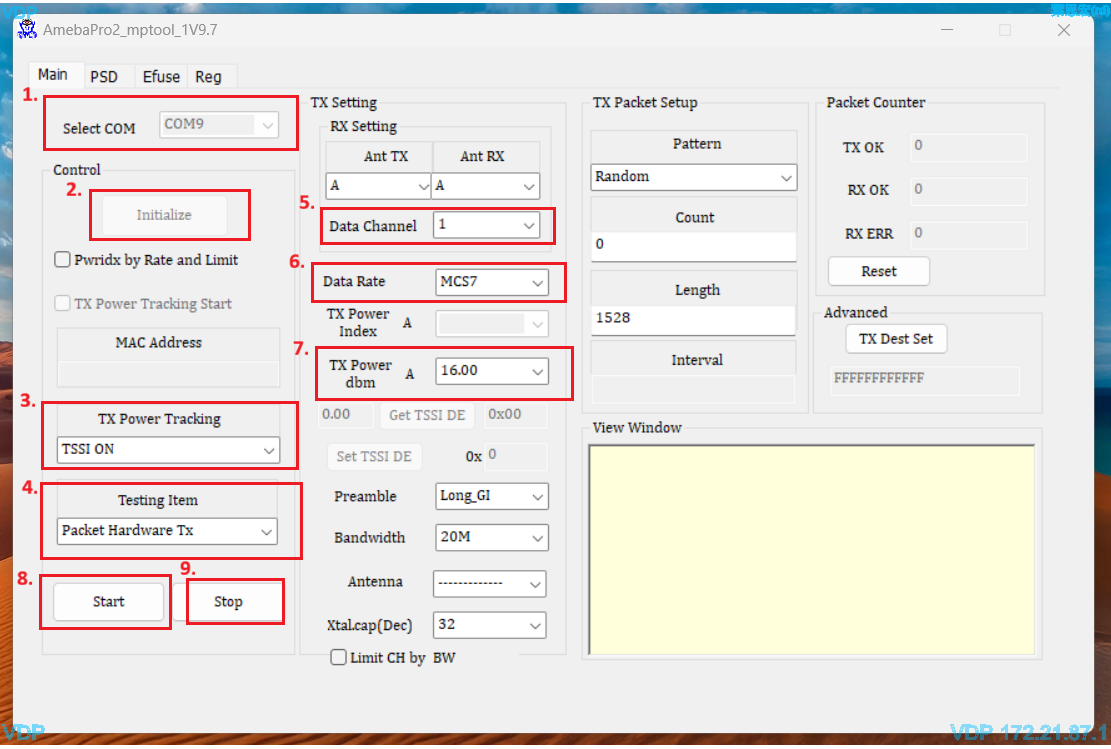
Fig. 23 MP Tool Packet Hardware TX setting
Select COM Port
Select the COM port corresponding to the DUT in the
Select COMdrop-down list.Initialize the DUT
Click
Initializeto establish communication with the DUT and enter MP test mode.Enable TX Power Tracking
Set
TX Power TrackingtoTSSI ON.Select Testing Item
Select
Packet Hardware Txas theTesting Item.Set Data Channel
Select the required Wi-Fi channel in
Data Channel.Example: Channel
1for 2.4 GHz testing.Set Data Rate
Select the required transmission data rate in
Data Rate.Example:
MCS7.Set TX Power
Configure the target TX power level in
TX Power dbm.Example:
16.00dBm.Start TX Test
Click
Startto begin continuous packet transmission with the configured parameters.Stop TX Test
To stop the test, click
Stopto end the packet transmission.
Note
If any unexpected issue occurs during the test, close and restart the MP Tool, then repeat the procedure from step 1.